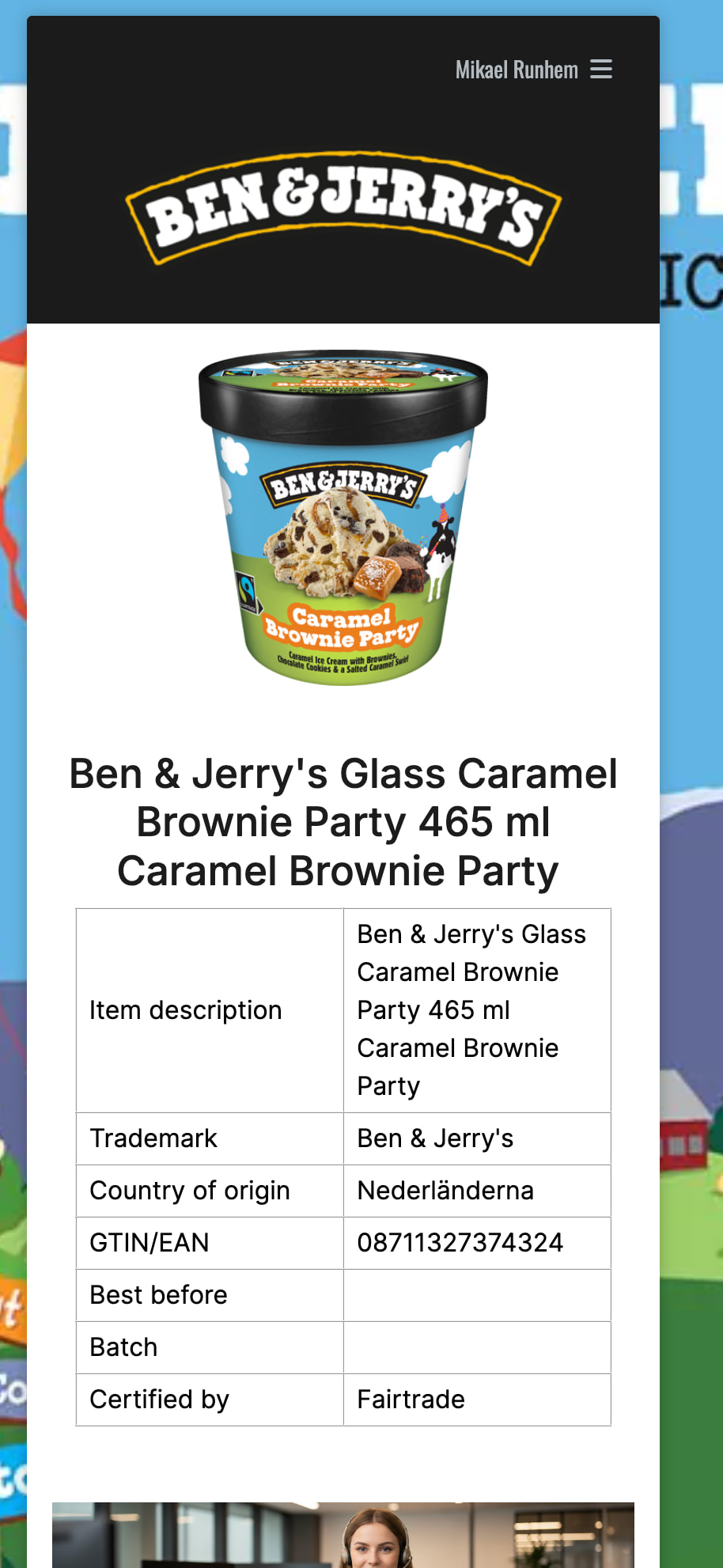
Normally only one page design is used in a Blippa account.
However, there are scenarios where you would like to apply different designs, like for different brands etc.
You can do this in three ways:
1: In the Object-Page design-Override Page Design for this object.. This only affects that specific object
2: In Template-Page design-Override Page Design for this object.. This will affect all objects created from the template.
Please note that the page design is copied from the template to the object at the time of creation. The design is not linked..
So, in order to update a design on 10.000 objects, you will need to select all objects and then apply the updated template (design)…
Not a good practice…
3: Using multiple page designs (=Best Practise)
This is the “proper way” to use different page designs
- In Labelsadmin-Design-Page Design enable “Multiple designs”.
- Create one or more additional designs.
Note: The design that is default will be used if no rule is matched. - Either create a variable called something like “brand” or make sure the brand value is already in a data source that you are using.
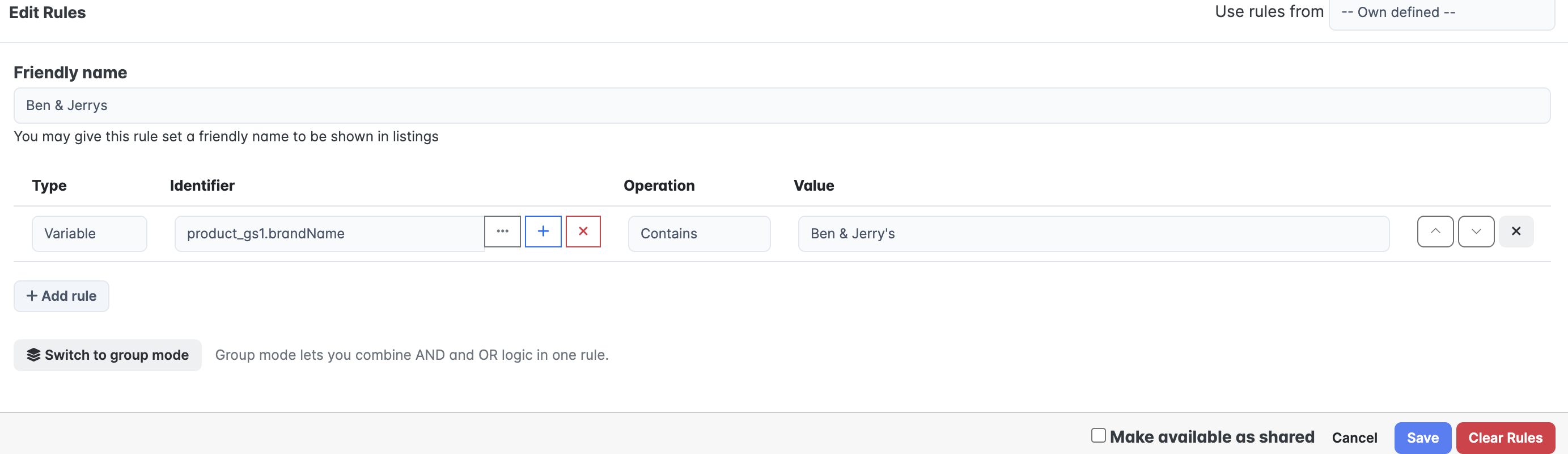
- Create a rule for each design (by selecting the rule button in the list of page designs).
- Set the rule to trigger if the variable value is something like “brand 1”, “brand 2” etc.
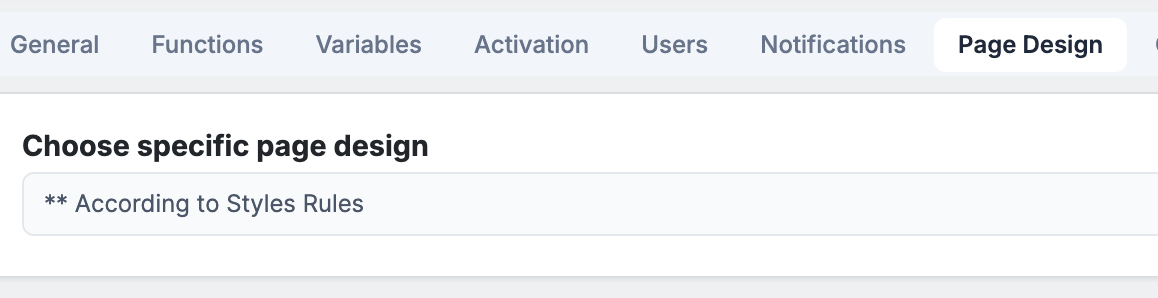
- In your template-Page design, select “According to style rules”. (This creates a “live link” that makes all objects show the current page design version).
In the template:
Several page designs with individual rules:

Page design (rule):
The result: